
TeamSync is a project I developed in Justinmind for the fourth course in the University of Michigan's User Experience specialization on Coursera, "UX Design: Concept to Prototype." The system acts as a to-do list within tasks and projects, an internal messaging system both directly and through the context of tasks/projects, and a file repository to remotely store and share documents relevant to those tasks/projects.
THE PROBLEM
I work in a small, local specialty retail store with only two employees and the owner. Our size allows us to split days so that only one person is ever working in the store at a time, which is great for the store’s budget, but not so great for the employees’ ability to communicate store matters, questions, and situations with one another.
As it is now, we leave many sticky notes, make many phone calls, and send many texts back and forth throughout each workday, which is inefficient for the worker and disruptive for the employee not currently working. Perhaps the most difficult aspect is that the owner rarely comes by and has other businesses, and therefore cannot often respond to emails, calls, or texts.
My challenge, then, was to design an app that could streamline, simplify, and otherwise support such team-based tasks.
THE CHALLENGE
I decided to develop an app geared toward helping remote teams—whether in a business, research, or school setting—to keep track of projects, tasks, and relevant files, while also aiding them in keeping in touch with each other while they work. The system would be meant to help solve the issues inherent with working remotely from others in a team, by keeping everything in one place, but accessible from anywhere.
MY PROCESS
Since this project was undertaken as a part of a class, I wasn't given time to gather user needs data as I would have, otherwise. So, I began with sketches. Here are a few of the many sketches I made:
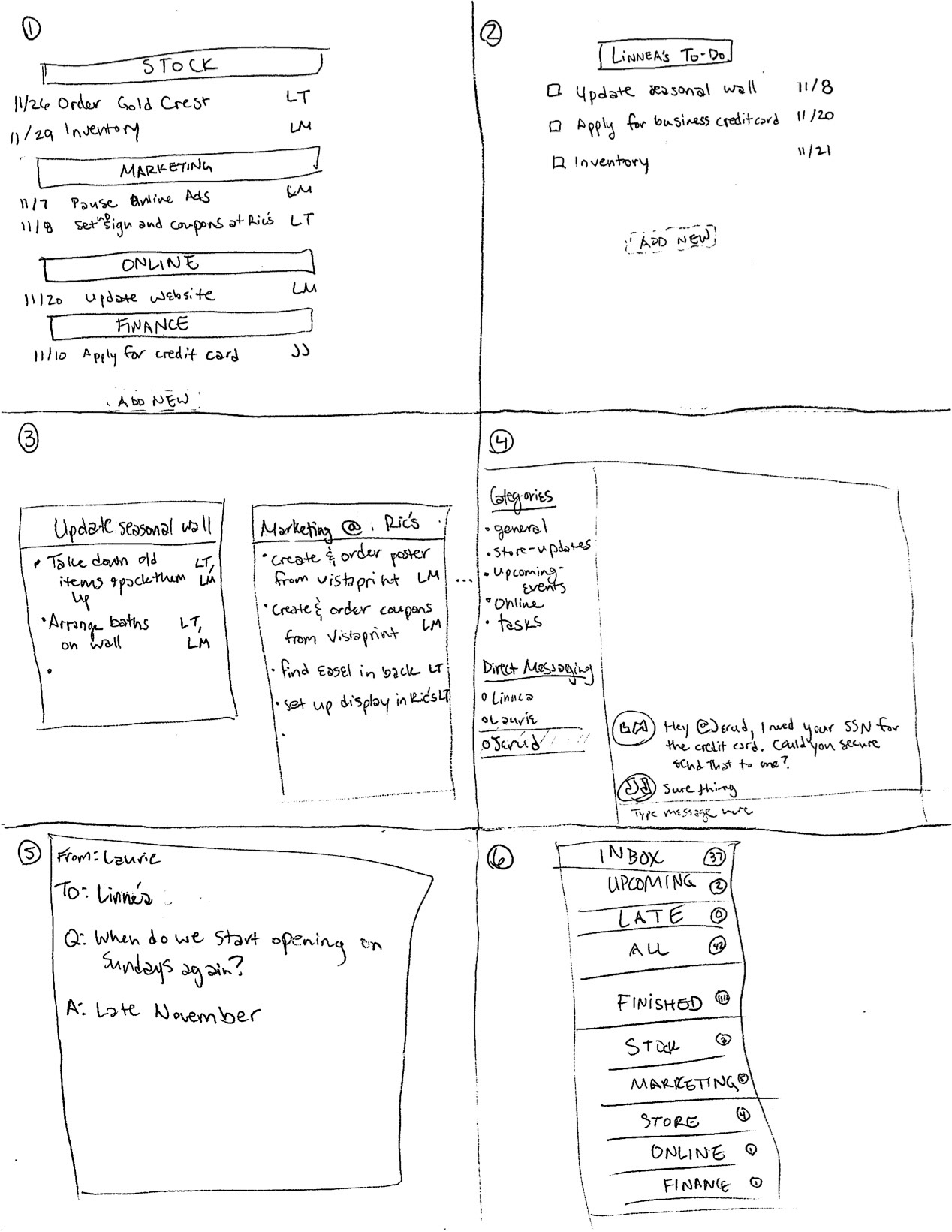
Sketch descriptions:
1. A shared list app
2. A shared to-do app, with lists for each employee, editable by the owner and manager.
3. A shared notes app
4. A shared messaging app where users can message each other directly or write information under relevant topics.
5. A shared questions app
6. A shared projects app, where tasks can be added to different project categories and assigned to different employees for specified due dates
Over the course of churning out these sketches, I began to develop a vague idea of what features might be useful and what I might like to try.
Personas
My next task was to create personas. Unfortunately, without user needs data to draw from, I had to create these with only the use of my intuition and experience. Here are the first personas I ever created:
Jason
Demographics
*Age: 46
*Occupation: Entrepreneur and Business Owner
*Life Stage: Married, 3 children
Motivations
*Being a good father
*Spending time with his family
*Getting work done as quickly and efficiently as possible
*Cutting corners where possible
Constraints
*Not technologically inclined
*Not overly concerned with keeping in contact with his businesses
*Does not like when work intrudes on his personal time
*On free time, likes to camp and fish where there's no cell coverage
Leah
Demographics
*Age: 22
*Occupation: Retail Store Worker
*Life Stage: Single
Motivations
*Professional success
*Always continuing to learn and grow
*Doing her best at everything she tries (even if it takes longer)
Constraints
*High technological literacy
*Ample free time when off work
*Does not mind when work intrudes on personal time
[Brief Aside] Looking back, it's hard not to cringe a bit at the lack of rigor behind these personas—nowadays, I wouldn't consider dreaming up a set of characteristics through imagination alone and calling them a persona. Where's the data to back them up? Since this was my first shot at persona-making, however, I suppose I should give myself some slack... We all were learners once!
Scenarios
The next step with these personas was to make a few scenarios out of them. Here is one for Leah:
Leah works for a local business that is small enough that only one worker runs the store at a time. So, whenever a project of hers requires input from one of her bosses, she has to get in contact with them on their days off. Today, she finishes the final touches on the coupon set she intends to propose to her boss, Jory. Jory never checks her email, and phone messaging wouldn’t allow Leah to send the actual file to her boss, so she decides to try using their go-to project management and messaging app, TeamSync. She opens the app, swipes through the Marketing project folder to the Ric’s Coupons task (which her boss had created for her when she first assigned her the task), and uploads the finished coupon file into the task. She then taps the “Check my work?” button on the task to automatically notify her boss that she would like some feedback.
As she lounges in her family room reading a book, Jory receives a notification on her phone that Leah would like her to check her work on her coupons. She taps the notification, which opens to the relevant page on the app. Jory looks over the coupon set idea and likes it a lot, but wants only the first two options, rather than the four that Leah created. So, she writes her instructions in the “Comment” field within the Ric’s Coupons task, and resumes her book.
System Inputs & Outputs
Now that I had taken the time to consider some contexts in which users might use an app like this, I mapped some inputs and outputs for the system:
Inputs
1. Project title: The user needs to be able to enter a title for a new project he or she is creating. The title will be entered by typing into a New Project form. (The same is true of tasks, which are nested within projects.)
2. Task assignee: Users need to be able to assign new tasks to themselves or other users within their network. He or she can do this by either typing out the name of the assignee into the field or picking their name from a drop-down box in the New Task form.
3. Task due date: Users need to be able to enter the due date(s) of a new task he or she is creating. To do this, the user will have to find the Due Date field in the New Task form and either type in the relevant date, pick it from a pop-up calendar, and/or tap the “Repeat” button to indicate that it is a task that recurs.
4. Comment: The user needs to be able to make comments on tasks. In order to do this, the user would have to scroll to the “Comment” box in the respective Task View and type their comment into the field.
5. Direct message: Users need to be able to direct message each other. To do this, they have to find the “Direct Message” area (available on every page), either type or scroll to the name of the intended recipient, and then type the message into the pop-up form.
Outputs
1. New message notification: When a user sends another user a message, the recipient receives a push notification (which they can tap to view in-app) to alert them to the new message.
2. Task update notification: When a task is updated—whether the due date, the description, or something else is changed—the assignee(s) are sent a push notification to let them know about the changes.
3. Task due date notification: On the due date of a task, a push notification will appear on the assignee’s phone (at a pre-specified time) to notify them that the task is due today.
4. Message sent notification: When a user sends a message to another user, the phone will vibrate and emit a tone to signal that the message is sent.
5. Task assigned notification: When a user assigns a new task to someone, the assignee receives a push notification telling him or her that they have a new task.
These helped me to focus in on the flow of the data in the app and the interactions I would be supporting.
Wireframes to Paper Prototype to Usability Testing
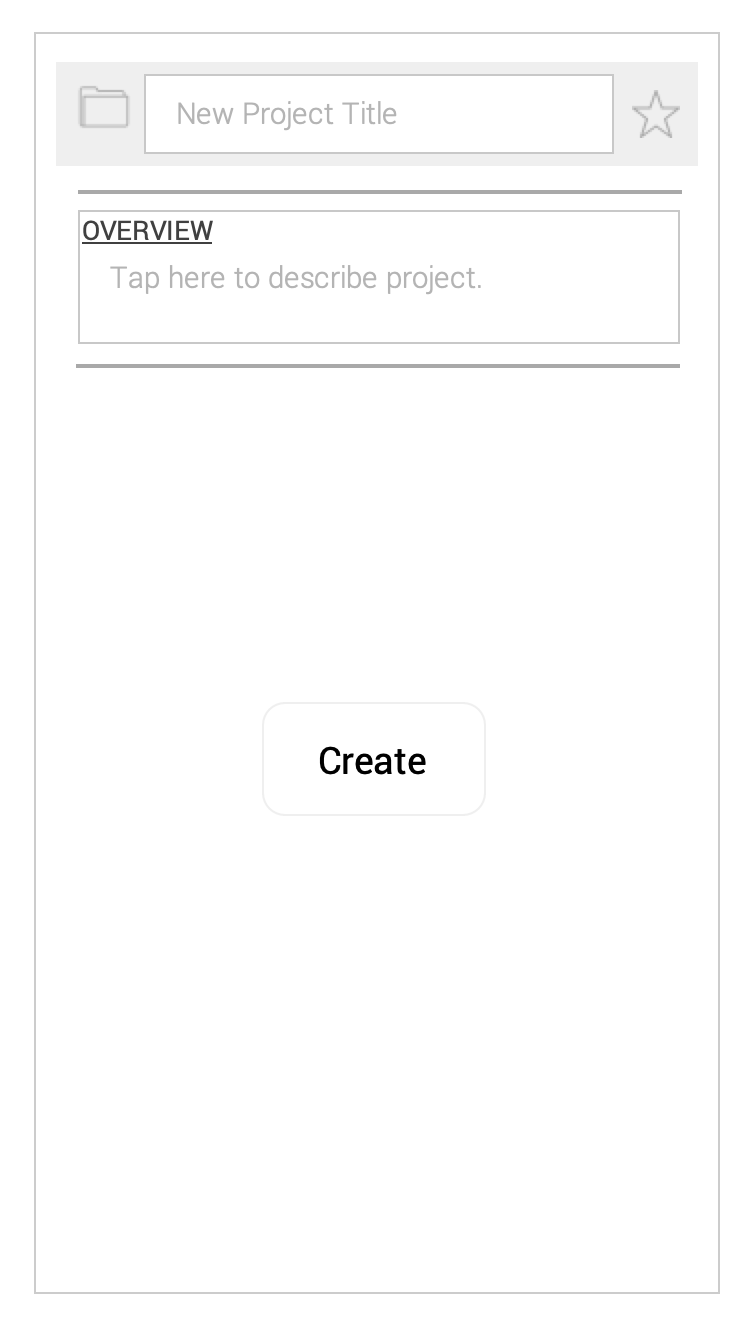
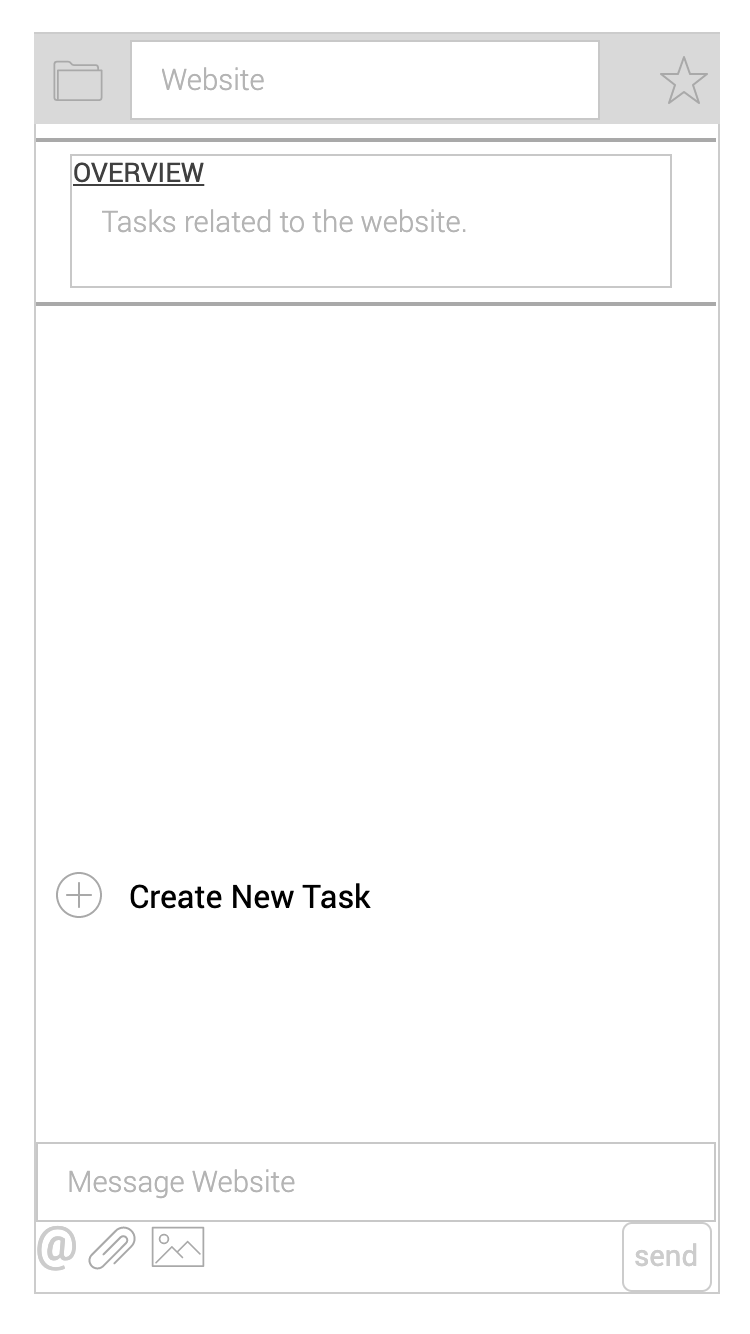
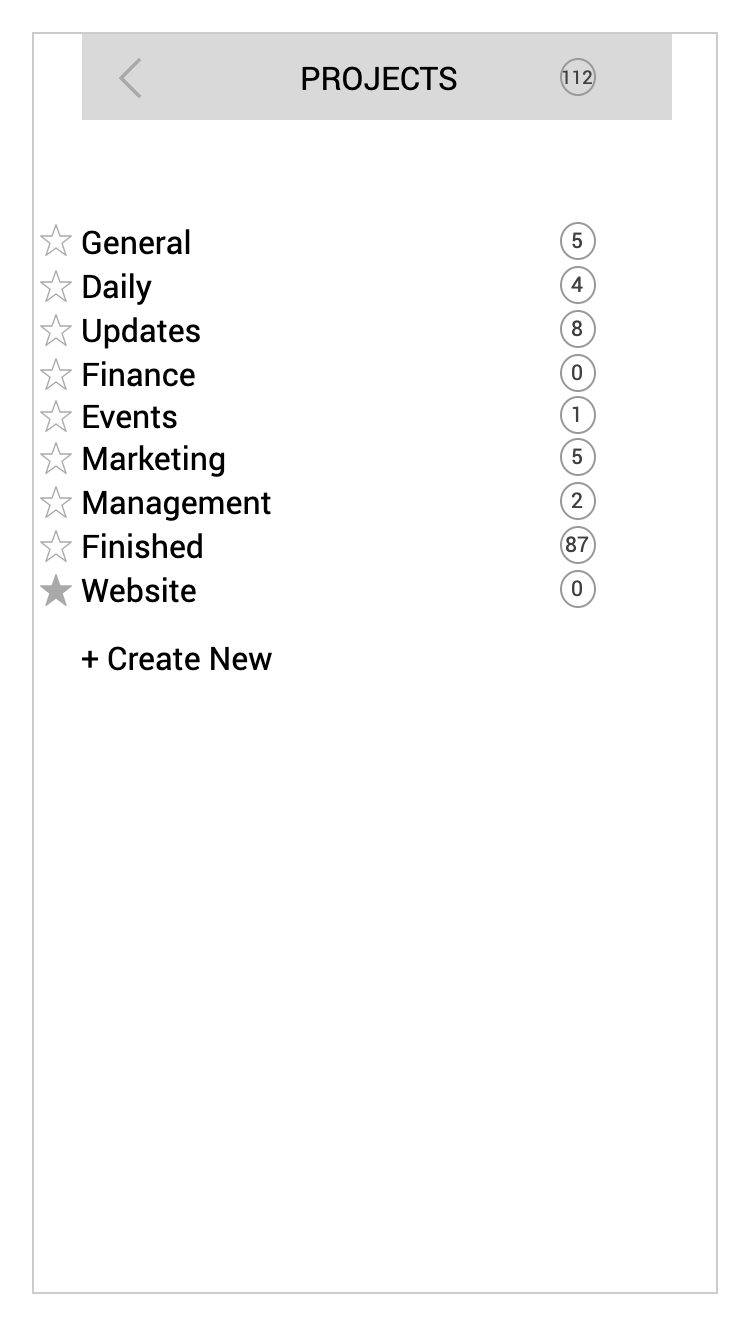
From all of these previous activities, I created a set of wireframes to test as a paper prototype. Here is the screen sequence for the task, "Create new project, 'Website' and describe it as 'Tasks related to the website:'”
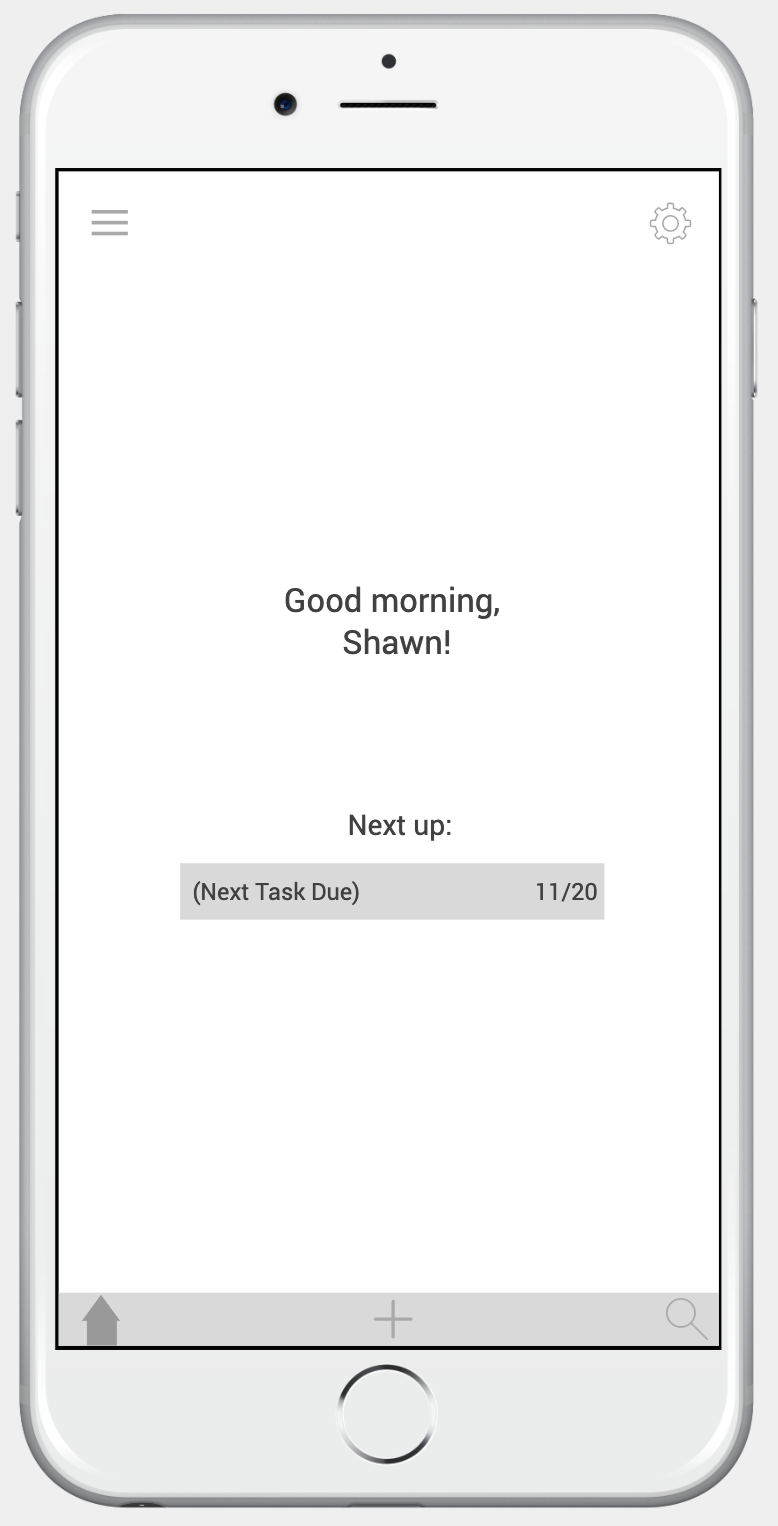
Home
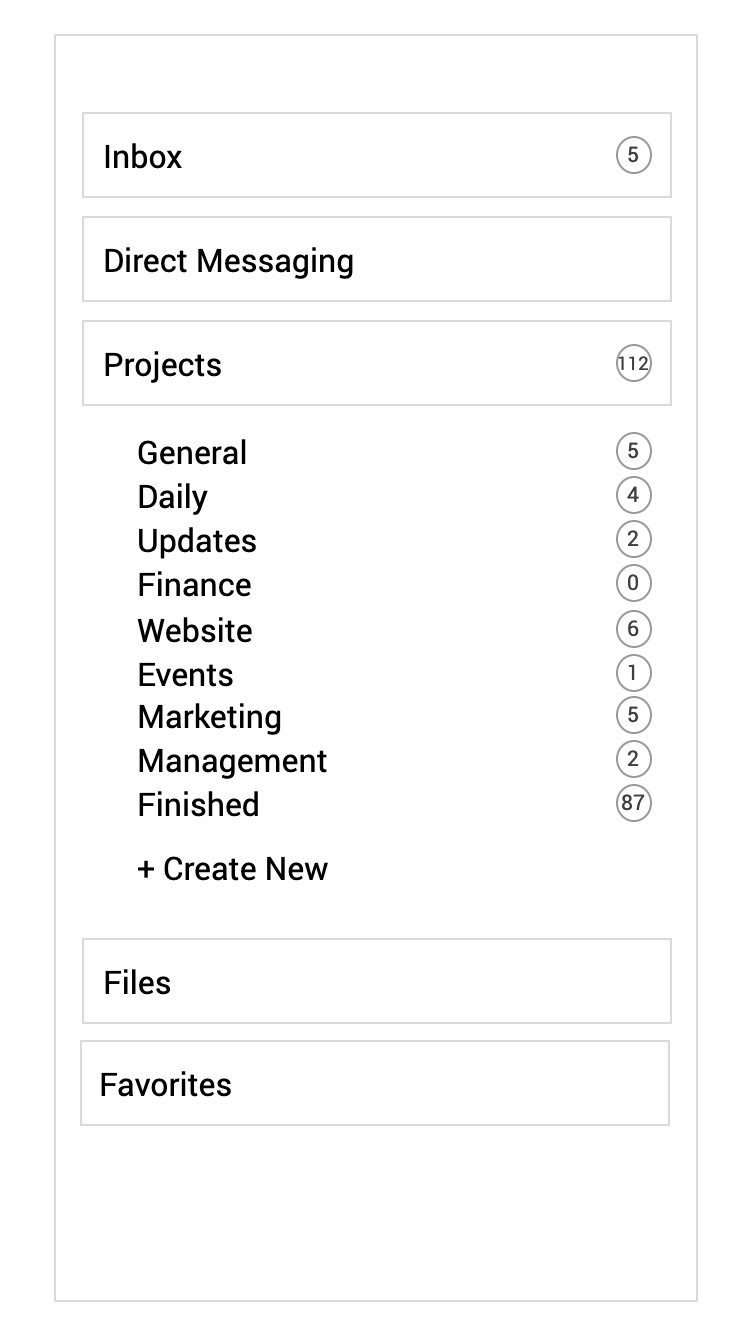
Menu
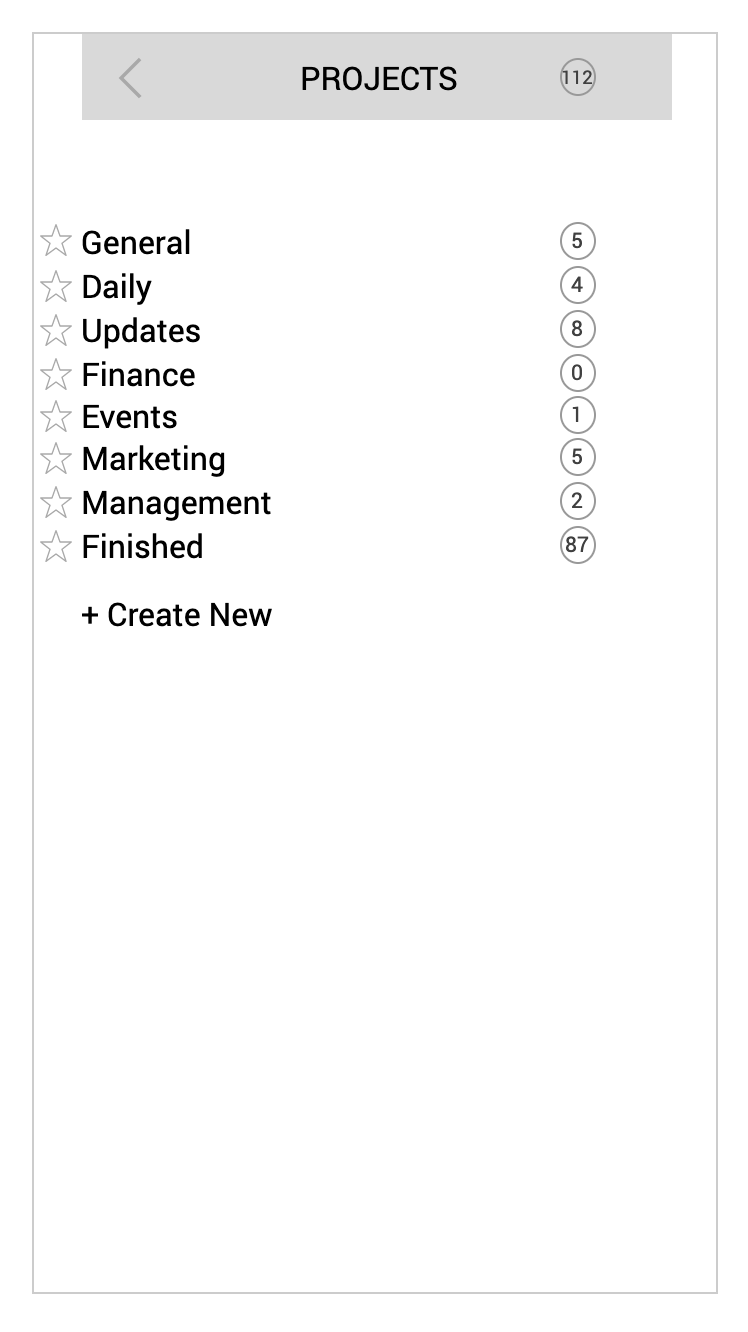
Projects
New Project
New Project Creation
New Projects Screen
From the home screen, a successful participant could have gone to the menu through the hamburger menu on the top left, tapped "Projects," tapped, "Create New," filled out the new project information, then tapped "create" to initiate the creation of the Website project.
These usability tests brought to light a number of flaws in this first design, such as:
1. A participant tapped and swiped in several different affordance-less areas in the beginning before finding the main menu. To help mitigate this potential confusion, I would create a short popup walkthrough to show new users where the main menu and other common items are located.
2. Individual projects don’t have a way of leaving the screen, so a participant had trouble figuring out how to leave the screen. To fix this oversight, I would add a “back” button (<) to the top left of every individual project screen.
3. A participant was confused as to the difference between a project and a task. To aid users in understanding the hierarchical system, I would include an explanation of projects and tasks in the short popup walkthrough.
4. A participant thought she could create a new project within a different project. To help with this issue, the popup walkthrough I would make would also include a short explanation of how to create both new tasks and projects.
5. A participant didn’t remember to click “create” when creating a new task and a new project. If I were to revise the prototype, I would make the “create” button more obvious, perhaps with a warm color or by making it larger.
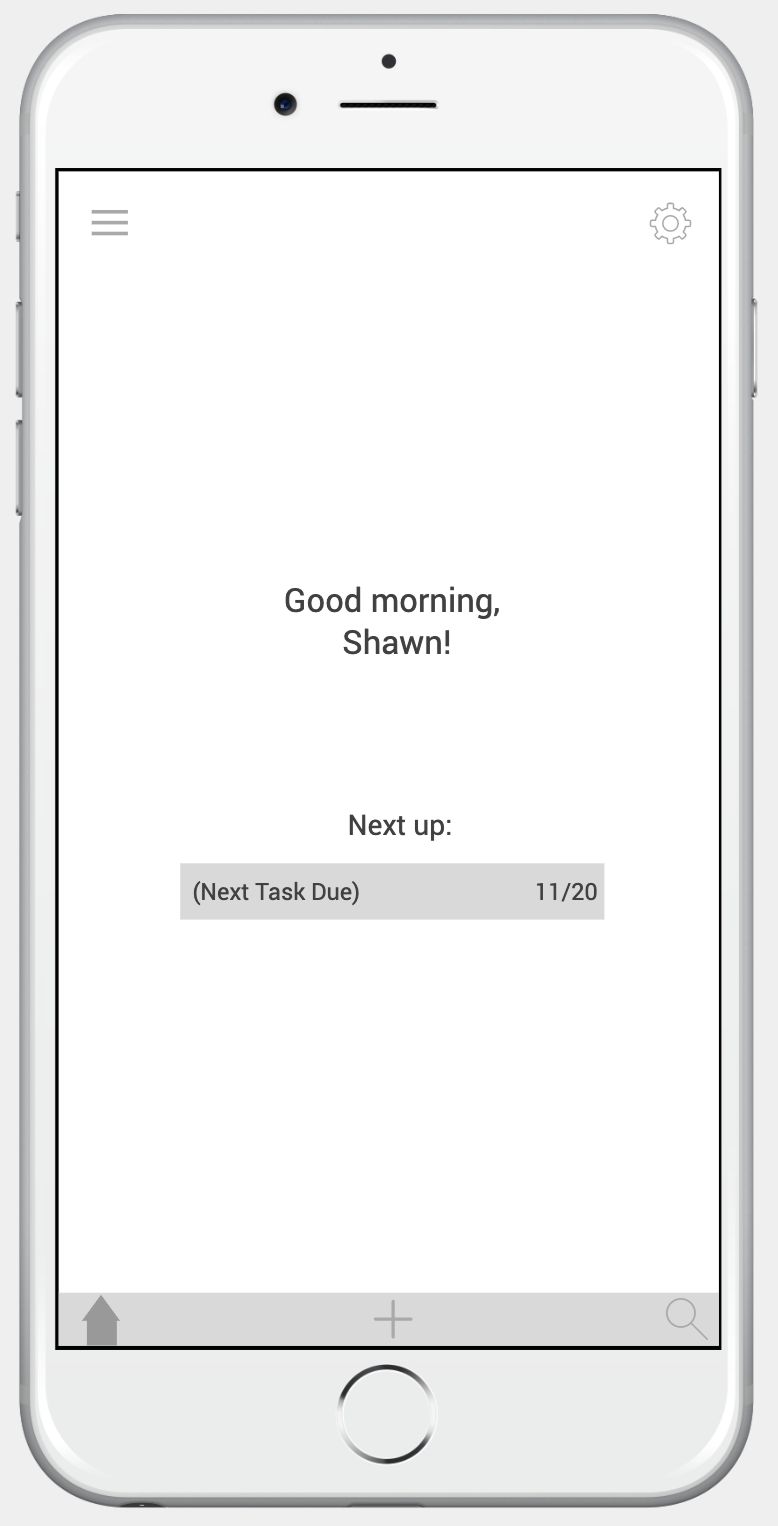
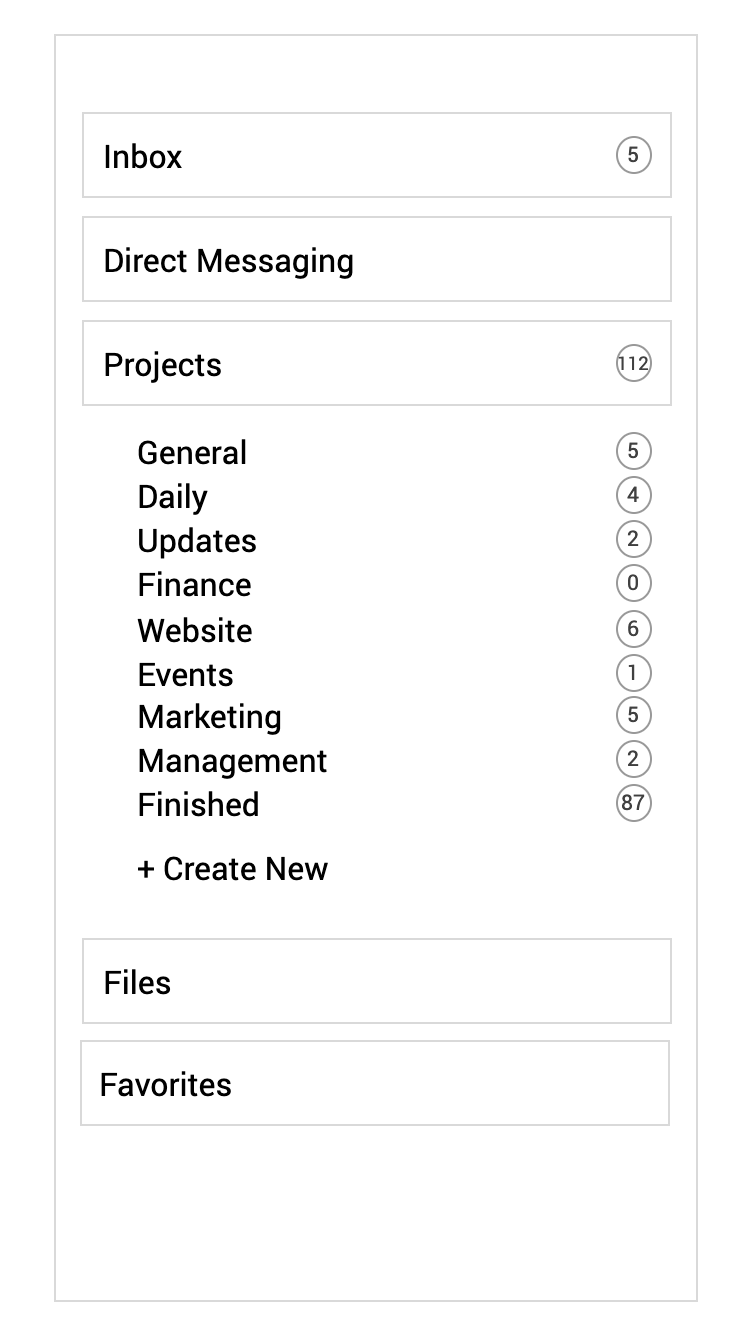
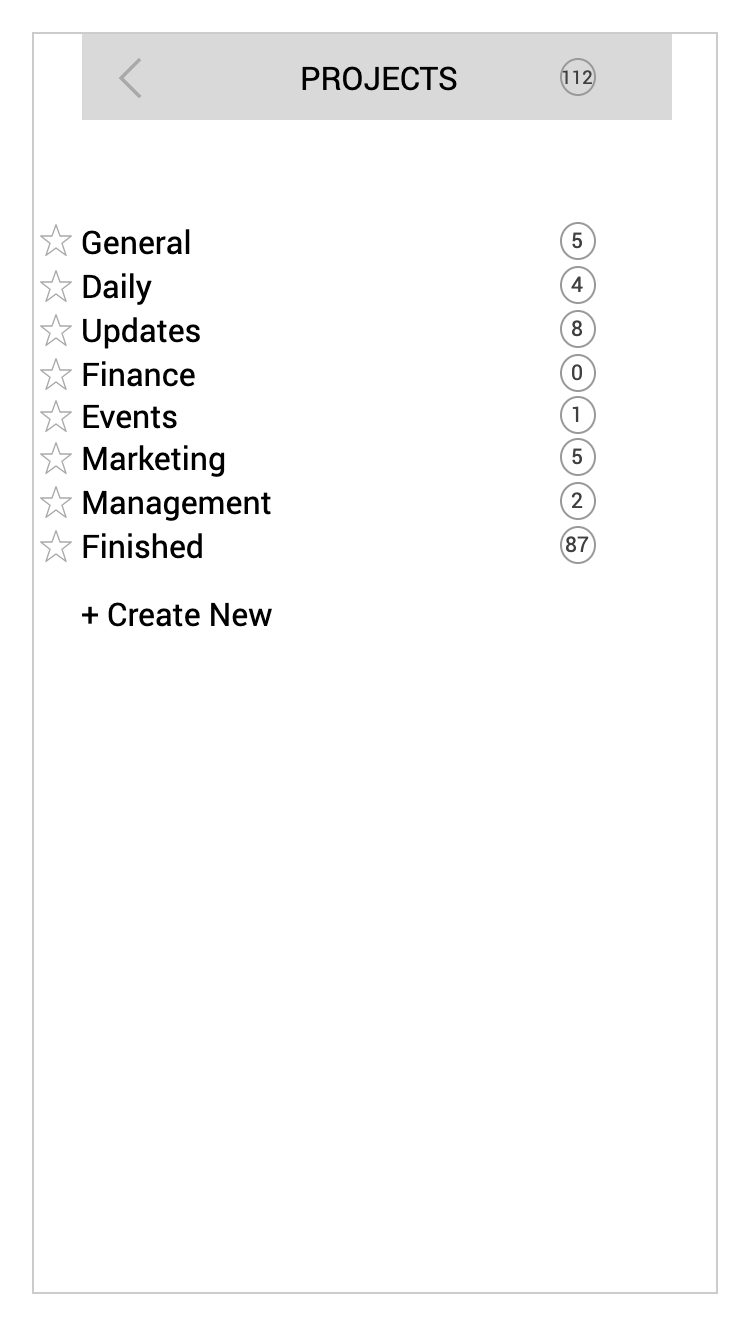
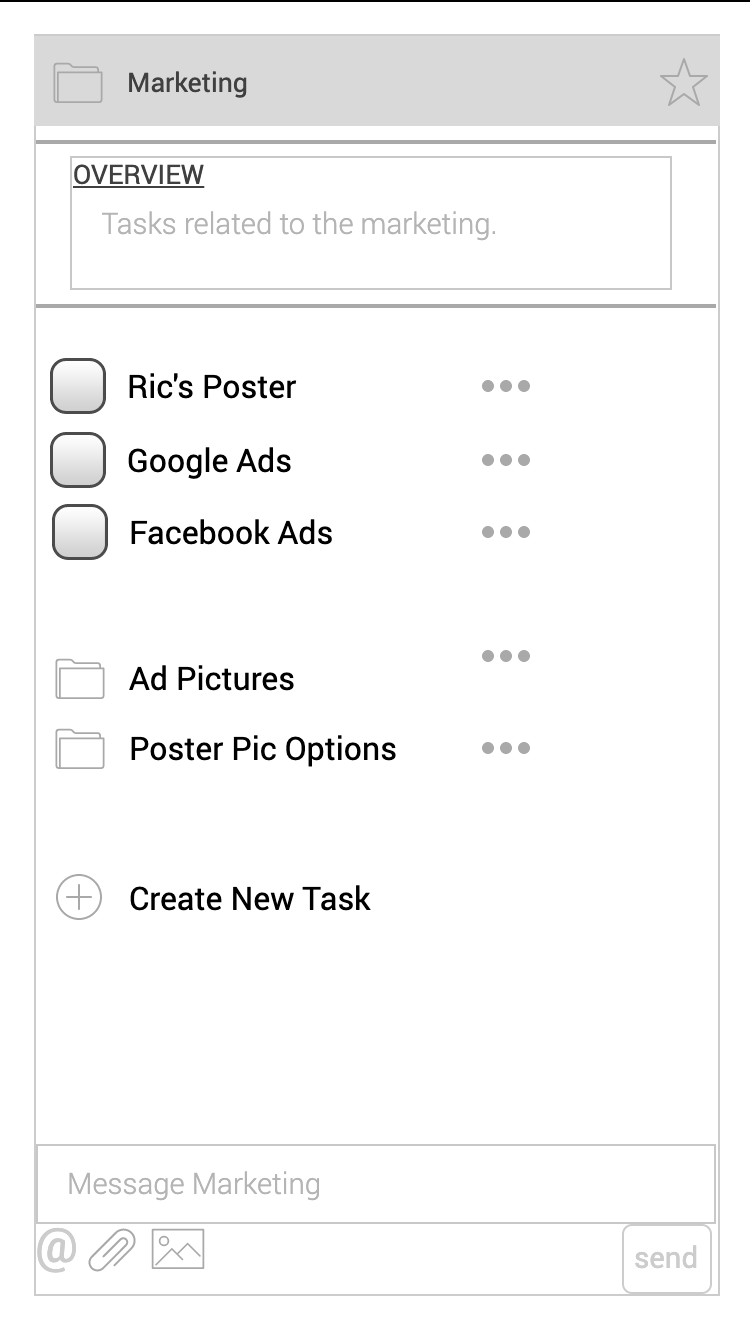
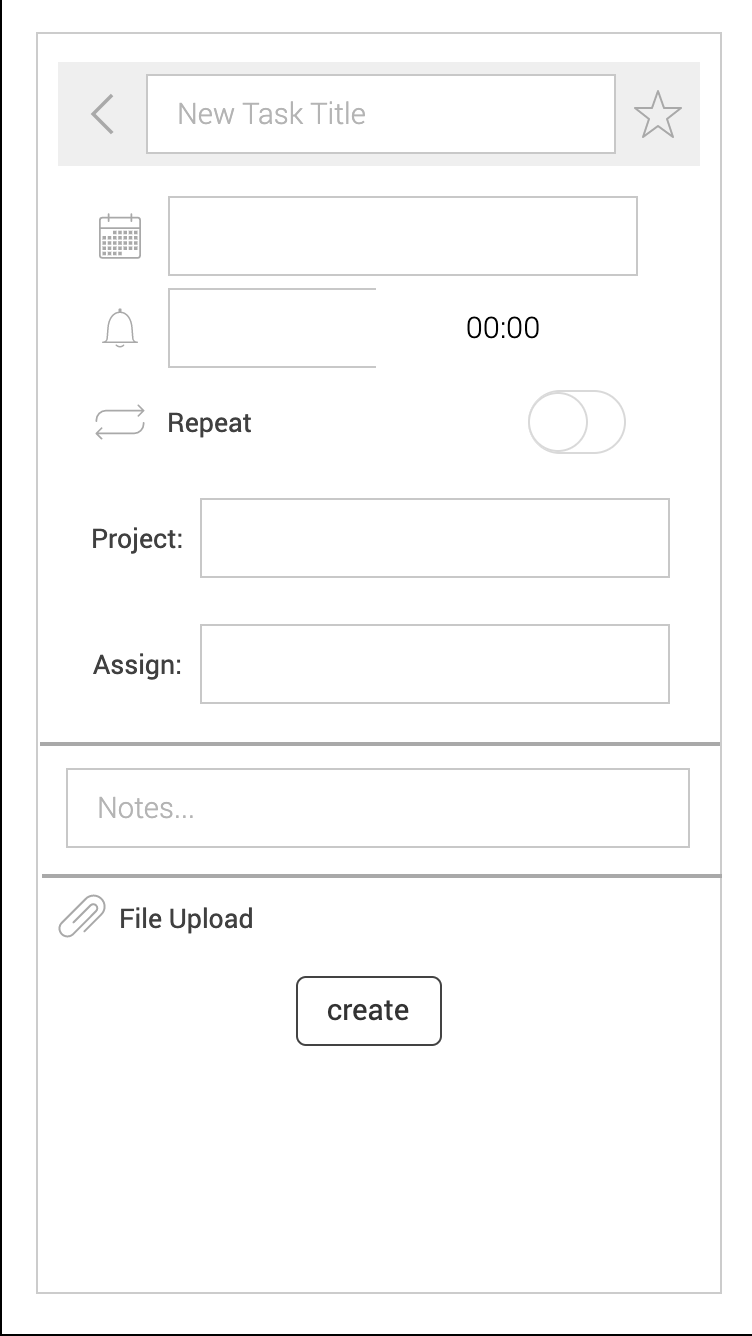
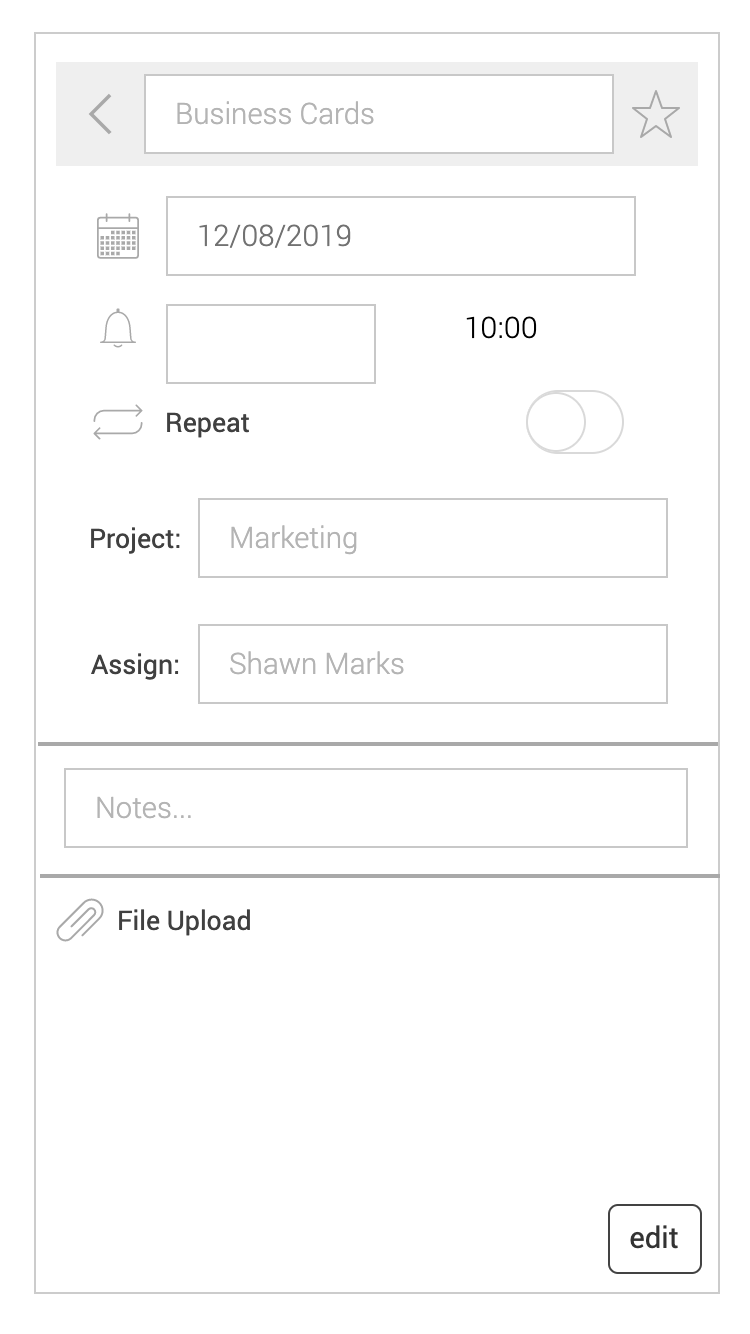
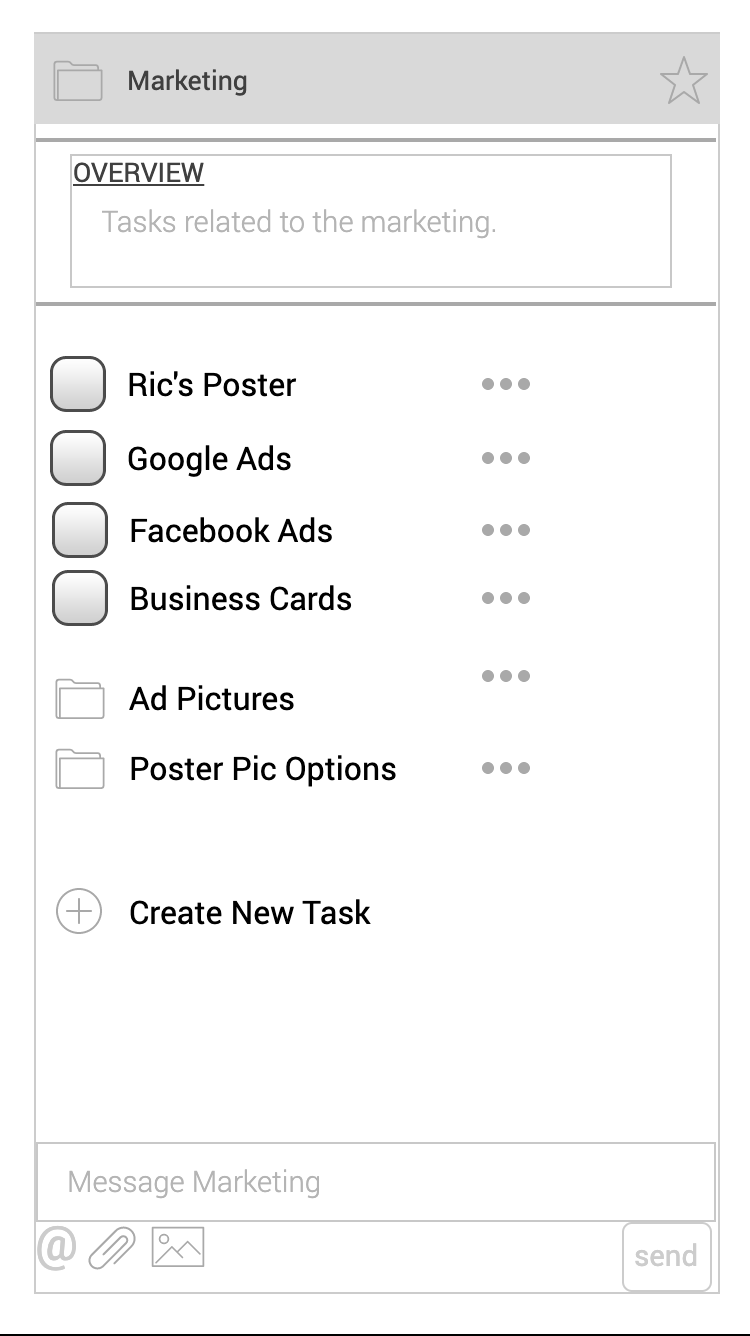
After making the necessary adjustments, I was left with a reasonably comprehensive deck of wireframes for TeamSync. Here is a progression of wireframes that shows how a user could add a new task to a project:
Home
Menu
Projects
Marketing Project
New Task
Business Cards Task
Updated Marketing
If they begin at the home screen, users would have to tap the hamburger icon to get to the menu screen, then tap projects, Marketing, and "Create New Task." Then, they just fill out the New Task screen with the relevant information, press, "create," and the system will bring them back to the Marketing project screen, with their new task added.
If you wish to see more of the wireframes I developed for TeamSync, please ask and I will provide!